Zorphbert & Fred by Dawn Griffin

Aliens, disguised as dogs, making fun of .. well.. YOU.
  • Home
  • New Readers!
  • About Dawn
    • Watch Me Draw
  • Store
    • Shopping Cart
  • Archive
  • Contact

Tips & Tricks: Illustrator Brushes

May18
on 2009/05/18 at 12:00 am
Posted In: Tips & Tricks

It’s “Tips & Tricks” time again, folks. I figured this time I’ll talk about the brush palette and settings in Illustrator. It’s amazing how much a few minor tweaks to your brushes can affect your final lineart!

If you are “inking” your comics in Illustrator with a wacom tablet or whatever tool you use, the brushes you use are very important. I use a bunch of custom made ones: a little tiny 1 pixel one for “penciling” the sketch, a medium size calligraphy one for inking, and a large calligraphy one for filling in black areas and coloring. You can set these up within your brushes palette, varying the pixel size, angle and roundness. If you use a pressure-sensitive tool like a wacom tablet, you’ll also have to change the setting on each brush from “fixed” to “pressure”. Here’s the setting I use for my “inking” brush, as an example:
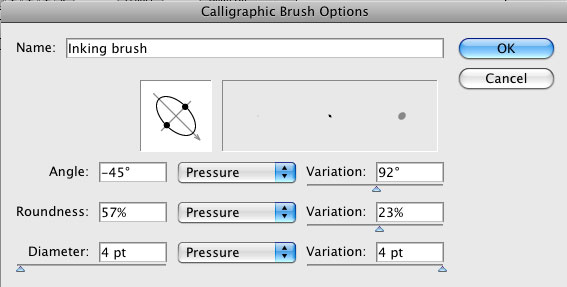
inkingbrush

Also, you can change the setting on the paintbrush tool itself, by double-clicking it on the tools palette. This is where you can change the tolerances: fidelity and smoothness. These settings allow you to control how much Illustrator “tweaks” your stroke. The higher the setting, the smoother the brush stroke, the less it looks like your original line. For instance, if you draw a sharp-cornered square with a high fidelity brush, Illustrator will curve the corners and smooth the box. Depending on your style this may or may not work to your advantage. I keep my settings really low, I prefer more control:
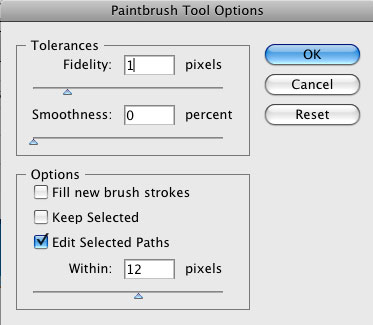
brushes

This is one of those things that you simply have to tinker around with, until you find what works for you. This is a feature that drew me away from Photoshop and into Illustrator, because I could never get a smooth enough line in Photoshop. But I know many people who swear by Photoshop, so see what works for you! Happy comicing!

1 Comment

Fanart Friday: Frank & Vinny

May15
on 2009/05/15 at 12:00 am
Posted In: Fanart

Frank & Vinny

With a 50th strip comes cameo’s, apparently. So, Mr. “Crocty” from “Frank & Vinny” went all out and invited everyone over! Nice to see Zorphie gettin’ around!

Frank & Vinny is a stick-figure webcomic, about nothing in particular.. but the wacky humor and goofball antics are what make it an amusing read! You should head over to drunkduck soon- he’s about to start up a new project, which has me curious!

 Comment 

Fanart Friday: Pugnuggle Tales

May08
on 2009/05/08 at 12:00 am
Posted In: Fanart

pugnuggle tales

Harry Cupec is the mastermind behind the brilliantly written and drawn Pugnuggle Tales.  A while back, he went through a cameo phase, and a TON of drunk-duckers showed up in his comic (another cameo in this piece frequents zfcomics, too, you KNOW who you are). And what a joy it was for us on the receiving end! Harry’s artistic skill boggles the mind, and if you take a look as his more recent work, it gets better by the second. Better hang onto your seats, kids, Harry’s imagination and creativity gets carried away, but the ride is the best part!

└ Tags: Fanart, Pugnuggle tales, webcomic
1 Comment

OMG, Check it Out!: Willow’s grove

May06
on 2009/05/06 at 12:00 am
Posted In: Blog

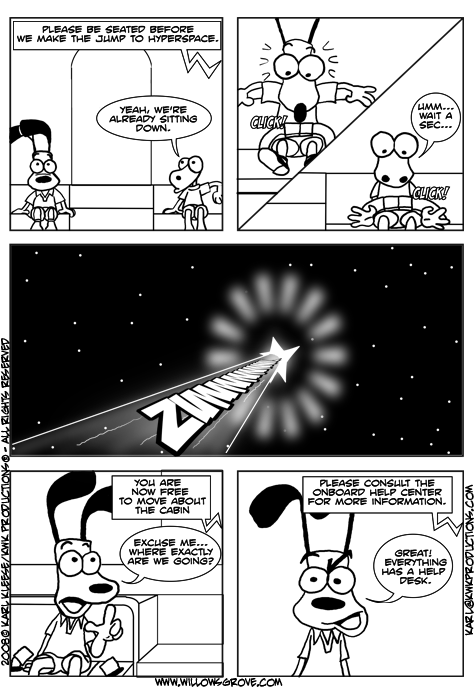
Time for a little webcomic mini-review again! As opposed to last time, where the comic was VERY different from Z&F’s tone and humor, this comic meshes really well with our alien-dog friends. Like sci-fi and cute animals? Obviously you do, if you read Z&F. Well, you’ll also love “Willow’s Grove” by Karl Kleese!

I’ll give this comic a 10-and-up rating. Couple minor curse words, but nothing that terrible. I’m guessing that most of my audience fits that age group, so flood right over and check it out!

Willow’s Grove is an easy-reading comic about some fuzzy friends from Earth (“Willow’s Grove, PA, to be precise) who stumble into a spaceship and are whisked away…. these things happen. The main characters are Max, Bob, and Fred (well, a “fake” Fred at first, you’ll just have to find out what I mean by that). Hey, I like any comic with another “Fred”, right? Max is your average disgruntled dog cartoonist, Bob does the best he can & is a very positive lizard fellow, and “fake” Fred (who looks like a muppet) is cute but a bit dim (always lovable, those dim ones!). The ship is controlled by a friendly helpful computer who offers our heroes whatever they please… Such as cigars, for instance, because what dog doesn’t love a good cigar? The characters discover just how high-tech this spaceship is, and when they find out about the cloning/replicator technology, things get interesting.

I see a lot of similarities between how Karl and I tackle storylines, and how we utilize the endless possibility that is alien technology. When you’re dealing with fictional far-off planets, we can invent any high-tech gadget we please! And this comes through in the computer-voice that the characters speak to on the ship. Problems are solved, or created, by whatever Karl decides the ship can do. This may be my only criticism: sometimes Karl makes things a bit TOO easy with that ship’s computer. I’m at fault for this too- from time to time I use alien technology to give a surprise twist in a storyline, or tie up loose ends. Something that can get abused if you use it too much as a writer… but where that line is, I haven’t quite figured out yet.

The art style is simple but inviting, very easy to sink into, like a comfy chair. I like the more recent use of graytones, however slight, they add a punch to the look. “Willow’s Grove” just makes me smile, and reminds me of favorite comics of my childhood, how uncomplicated and fun they were to read. I highly suggest it!

As a sidenote, I find it amusing that I live near a Willow Grove, Pennsylvania, as well. I’ll have to give Max a call sometime, have a cigar with him.

3 Comments

Tips & Tricks: Live Trace/Paint Settings

May04
on 2009/05/04 at 12:00 am
Posted In: Tips & Tricks

It’s another juicy “Tips and Tricks” tidbit, from me to you, my faithful readers. This is an addition to the last T&T I did, concerning Live Paint and Live Trace in Illustrator… Wonderful, wonderful tools. Especially for those of us who want to vectorize their scanned inked work, or color in their already-digital lineart.

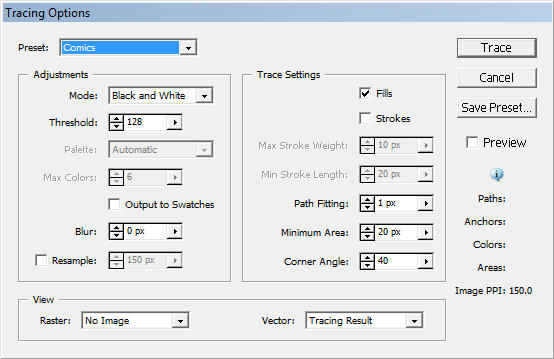
The Live Trace tool has a million presets, and ways for you to customize it yourself. You’ve probably already played with the commonly used presets, like “comic art” or “inked drawing”. I found these didn’t give me quite the result I wanted. After a lot of playing around with Tracing Options, I now use this saved preset below:

tracing

This all depends on how big you make your comic to begin with, and how “fine-tuned” you want your comic to look in the end. Live Trace can smooth out lineart if you scan in an inked image that tends to look somewhat rough-around-the-edges. But maybe you LIKE those rough edges, and you’d rather it just keep the fine detail. My settings are somewhat more specific, giving me more control. Once you find yours, be sure to save the preset, so you can always use it again!

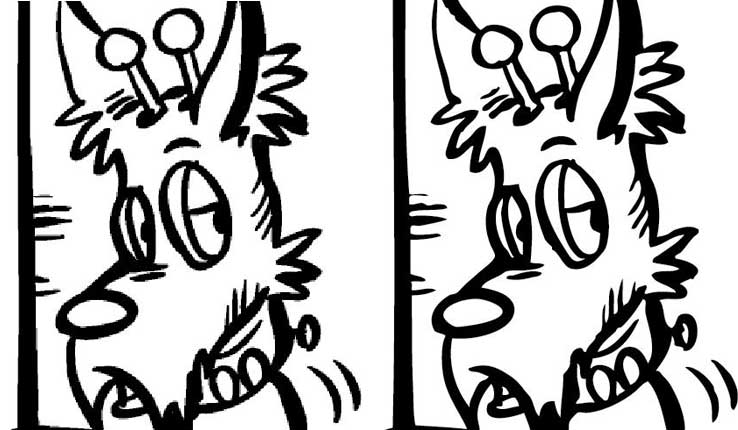
An example of the before and after (it’s very slight, hope you can see the difference):

z

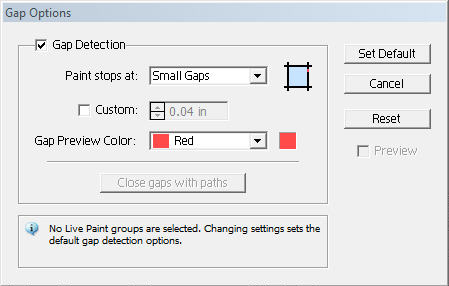
As for Live Paint, the main setting you should toy around with is the gap settings. This is located under OBJECT–>LIVE PAINT–>GAP OPTIONS. The “gap” is how big of an area the live paint bucket is allowed to fill. You can simply change it to small, medium or large. Personally, I use “small”.. Again, more control.

gap1

That’s it for today! Happy comicing!

4 Comments
  • Page 48 of 51
  • « First
  • «
  • 46
  • 47
  • 48
  • 49
  • 50
  • »
  • Last »

Follow me!

  • facebook
  • twitter
  • instagram
  • rss

Tip Jar!

Error! Missing PayPal API credentials. Please configure the PayPal API credentials by going to the settings menu of this plugin.

In Cahoots With:

ZnF
  • See my contribution to the Anthology
  • ZnF

    ©2007-2025 Zorphbert & Fred by Dawn Griffin | Powered by WordPress with ComicPress | Subscribe: RSS | Back to Top ↑